
Meet SOS: the rescue tool for when SpawnBox will not open
If the SpawnBox app will not open, SOS is a small rescue tool that can still start, check, and fix your Minecraft servers. Here's how to use it.
Every now and then, software has a bad day. Maybe SpawnBox won’t open, or it opens but nothing seems to work. If that ever happens to you, take a breath: your servers and worlds are still safe, and you still have a way to reach them.
SpawnBox quietly ships with a small rescue tool called SOS. It’s a separate little program that can start, check, and fix your servers even when the main SpawnBox window won’t come up. This guide shows you what it does and where to find it, so it’s ready if you ever need it.
What SOS is
SOS is a small text-based control panel. Instead of the usual buttons and windows, it’s a simple screen you steer with your keyboard, where you press a letter or a number to choose what to do. It’s designed to be calm and clear, because it shows up in moments when something’s already gone wrong.
When you open it, it greets you with the SpawnBox logo and an “Emergency Mode” banner, along with a reassuring note that your servers are still fine.
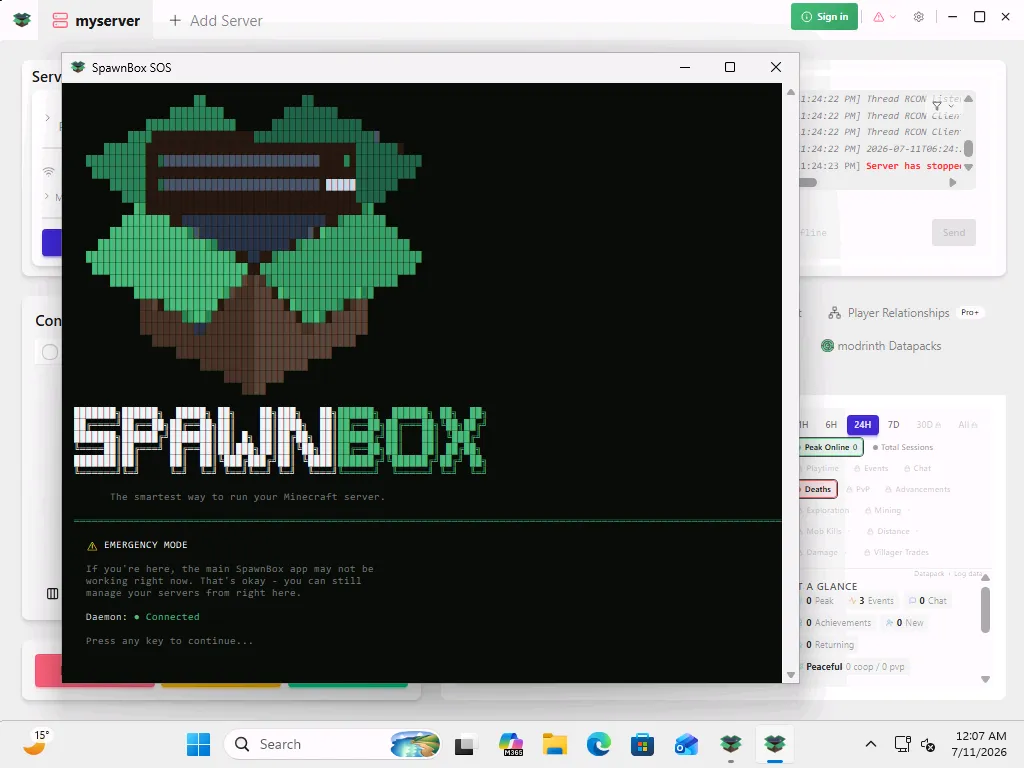
Behind the scenes, SOS talks to the SpawnBox background helper to do its work. If even that helper is down, SOS quietly switches to talking to your servers directly, so it can still help. You don’t have to think about any of that; it just does the smart thing automatically.
Where to find it and how to open it
SOS lives quietly alongside SpawnBox, out of the way until you need it. It sits in your SpawnBox app folder as a file called sos.exe. Here’s the quickest way to get there:
-
Hold the Windows key and press R. A small “Run” box appears.
-
Type (or paste) this, then press Enter:
%LOCALAPPDATA%\SpawnBox -
A folder opens. Find sos.exe in the list and double-click it.
That’s it. SOS opens in its own window.
What you can do with it
SOS does three main jobs: it runs your servers, tells you what’s wrong, and helps you fix it.
Run your servers
SOS shows you a list of all your servers with their current status, version, and port. Pick one and you can:
- Start, restart, or stop it. You’ll also spot a deeper “Nuclear” restart for stubborn cases. Despite the dramatic name, it simply rebuilds the server fresh from your settings, and SOS always asks you to confirm before it does anything.
- Open a live view of what your server is doing, and type commands straight to it, just like a console.
- Make a lifeboat copy of it (more on that below).
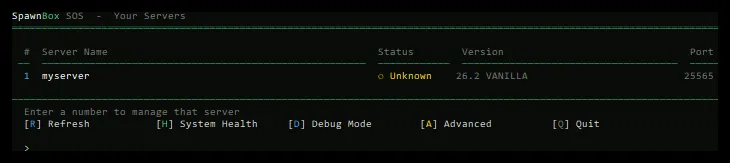
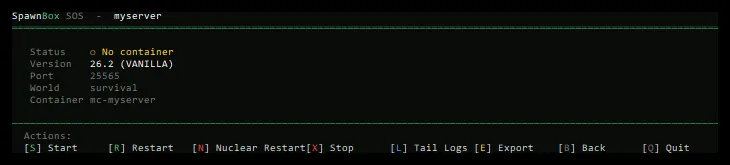
One honest note: SOS works with the servers you already have. Creating a brand-new server is still a job for the main SpawnBox app, which is built for that with all the friendly guidance.
Check what’s wrong
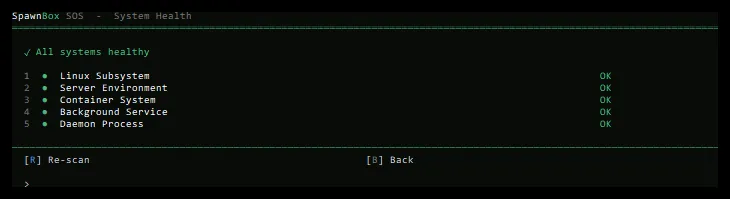
Choose System Health and SOS runs a quick check of the handful of pieces that need to be working for your servers to run. Each one shows up green when it’s healthy or flags itself when it needs attention, so you can see at a glance where the trouble is.
Fix it
This is where SOS really earns its name. From the health screen you can pick Fix All, and SOS works through each problem in order. It can restart the SpawnBox background helper, reinstall the pieces that keep your servers running, and even undo a recent update that caused trouble. Some fixes need Windows permission to run, so you may see a permission box; that’s normal, just click Yes.
A few more tools
SOS has a handful of extra options for when you need them:
- Debug Mode turns up how much detail SpawnBox writes down about what it’s doing. If you ever send us a diagnostic to get help, switching this on first gives us a much clearer picture.
- Export makes a standalone lifeboat copy of a server, one that can run on any Windows PC by itself. That’s the same lifeboat we cover in the run.bat guide.
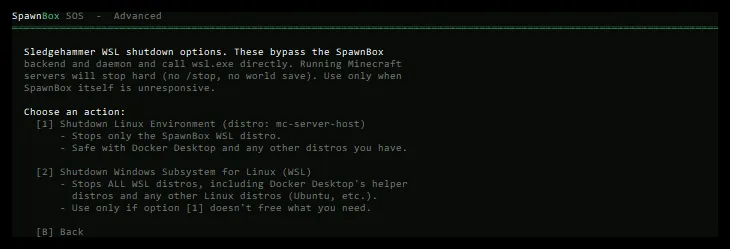
- Advanced holds a last-resort option to force-stop the background engine SpawnBox runs your servers on.
When to use SOS, and when not to
SOS is an emergency companion, not your everyday tool. For normal, day-to-day server management, the main SpawnBox app is friendlier, prettier, and does far more.
But if things ever go sideways, SOS is a genuinely capable little control panel. It can get your servers running again, show you what’s wrong, and fix a lot of it on its own, right when you need it most. That’s why it quietly comes with every copy of SpawnBox: so it’s always there, waiting, just in case.
Also worth knowing
If your goal is simply to run a world somewhere else, or to keep a copy that runs on its own, the run.bat lifeboat is the simpler tool for that. SOS and the lifeboat work beautifully together: two different safety nets, both already in place.