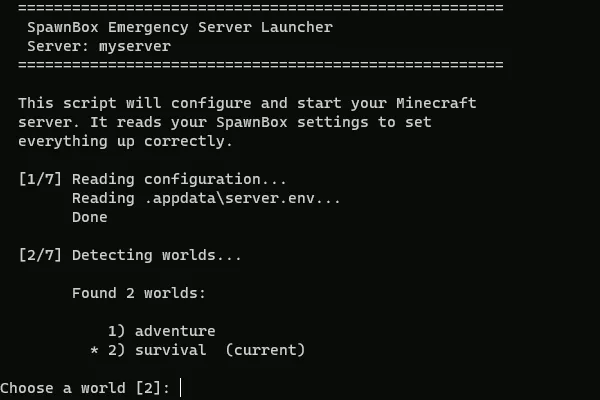
Your world is never locked in: the run.bat lifeboat
Every SpawnBox server folder includes a simple start-up file that can run your Minecraft world on any Windows PC, even without SpawnBox installed.
SpawnBox runs your Minecraft server for you and keeps an eye on it. But here’s something we think matters just as much: your world was never trapped inside SpawnBox. It’s yours, and you can take it anywhere.
Tucked inside every one of your server folders is a small file called run.bat. Double-click it on almost any Windows PC and your server starts up, all on its own. No SpawnBox, no setup, no accounts. We call it the lifeboat.
What the lifeboat actually is
When SpawnBox runs your server, it uses a small background engine to keep everything tidy and separated. That’s great day to day, but it does mean your server usually only starts through SpawnBox.
The lifeboat skips all of that. run.bat is a plain start-up file that knows how to launch your server directly on Windows. Every time SpawnBox starts your server, it quietly refreshes this file so it always matches your latest settings. You never have to create or update it yourself.
So at any moment, sitting right next to your world, there’s a one-click way to run that world without SpawnBox in the picture at all.
When you’d reach for it
Most people never need the lifeboat. But it’s a real comfort to know it’s there for moments like these:
- Something goes wrong and you need your server up now. Even if SpawnBox itself is having a bad day, your world can still run.
- You’re moving to a new computer. Copy the folder over, double-click, and you’re playing again, no reinstalling required.
- You want to hand a server to a friend who doesn’t use SpawnBox. Give them the folder. They double-click run.bat and host it themselves.
- You just want peace of mind. Keep a copy somewhere safe as a long-term archive. Years from now, it will still open.
How to use it
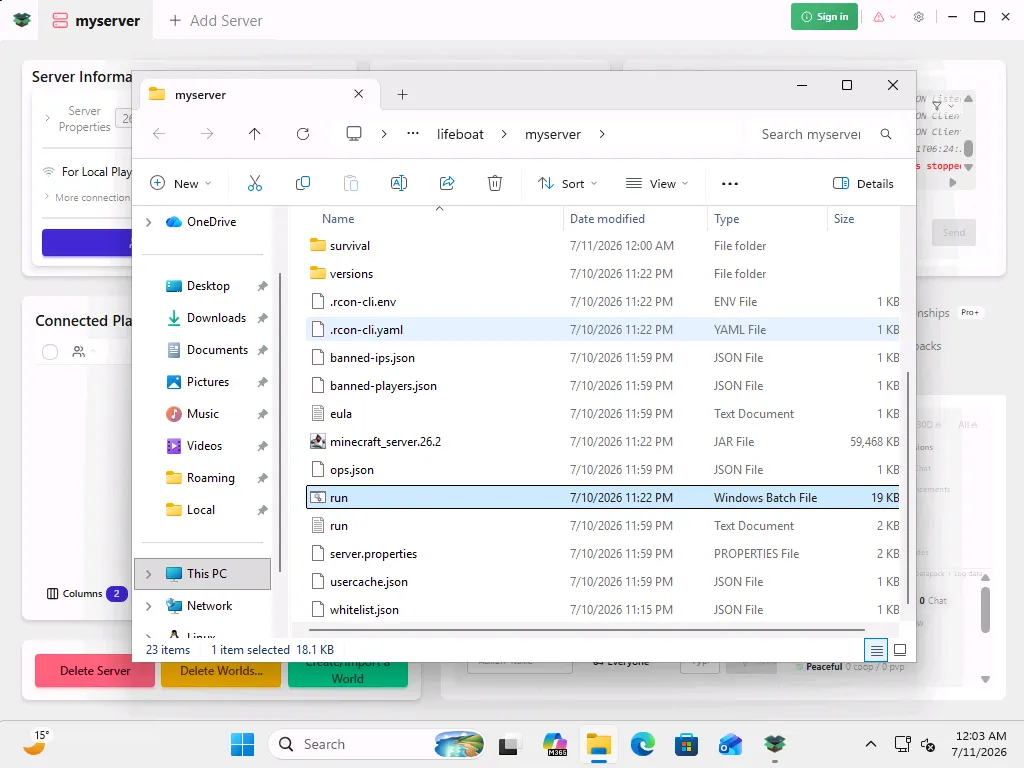
1. Get the folder onto your PC. The one thing to get right: the folder needs to sit in a normal place on your computer, like your Documents folder.
- The easy way: in SpawnBox, make a backup of your server, then use its Export button. It asks where to save, so choose a normal folder on your PC (Documents is perfect). You get a complete, ready-to-run copy with the lifeboat already inside.
- Copying by hand: if you’d rather copy the server folder yourself, copy it into a folder on your PC first (Documents again), then use that copy. Don’t run it straight out of SpawnBox’s own storage.
2. Double-click run.bat. A black text window opens and walks itself
through a few quick steps. You don’t have to type anything yet, just watch.
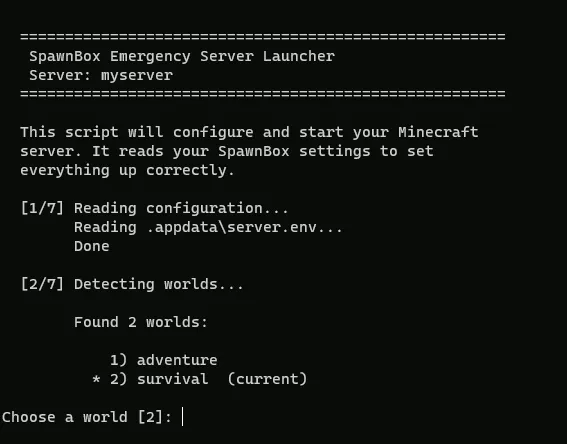
Here’s what you’ll see it do, in plain terms:
- Read your settings, so the server comes up exactly the way you had it.
- Ask which world to load, but only if the folder has more than one. If there’s just one, it picks it for you.
- Set everything up by copying your mods, add-ons, and settings into place.
- Check for Java, the free software Minecraft servers need to run. If your PC doesn’t have the right version, the lifeboat installs it for you automatically. Windows may pop up a quick permission box; just click Yes.

- Start your server, using performance settings the Minecraft community recommends, so it runs smoothly.
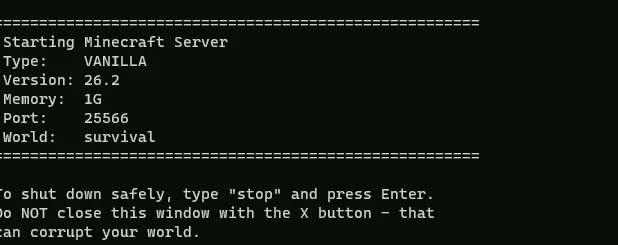
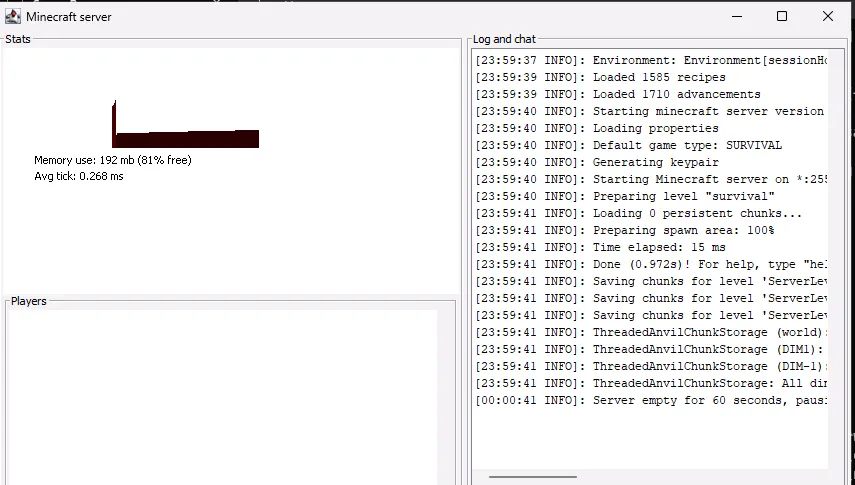
3. Play. Once it says your server is running, connect the same way you always
do. If you’re on the same PC, that’s usually localhost.
What it handles for you
The lifeboat isn’t a stripped-down version of your world. It brings the whole thing along:
- Your server settings, exactly as you configured them
- Your worlds (and it lets you pick, if you have more than one)
- Your mods, add-ons, and their settings
- Your allow-list, operators, and ban lists
- The right version of Java, installed automatically if it’s missing
The honest part
The lifeboat is a lifeboat, not the whole ship. When you run your world this way, you’re getting the world itself, up and playable. What you’re setting aside for the moment is everything SpawnBox normally does around it: the friendly dashboard, live monitoring, automatic backups, and the help with letting friends connect from the internet.
That’s exactly the trade you want in a pinch. Your world keeps running today, and whenever you’re ready, you can go right back to managing it in SpawnBox with all the comforts switched back on.
If SpawnBox itself won’t open
The lifeboat is for running your world on its own. If the trouble is that the SpawnBox app won’t open in the first place, there’s a second safety net built for exactly that: a small rescue tool that can start, check, and fix your servers even when the main window won’t come up. See Meet SOS: the rescue tool for when SpawnBox will not open.