How to host a Minecraft server for friends (no port forwarding)
Scared of port forwarding? You may not need it. Here's the easy way to get friends onto your Minecraft server, plus the free fix if your internet fights back.
“Port forwarding” is the phrase that scares people off hosting their own server. It sounds technical, it sounds risky, and every tutorial seems to treat it as step one. Here is the good news: with SpawnBox, most people never touch it. This guide explains what port forwarding actually is, why you probably do not need to do it by hand, and what to do in the one case where your internet fights back.
Prefer to watch? The Easy Way to Host a Minecraft Server for Friends (No Port Forwarding)
What “port forwarding” even is (and why people dread it)
Think of your home internet as a building with a lot of numbered doors, called ports. When a friend tries to join your server, their connection has to come through the one specific door your server is listening at. Port forwarding just means opening that one door so the connection gets through.
Traditionally, you did this by hand: log into your router, hunt for the right settings screen, and type in numbers you were told to use. It is fiddly, every router looks different, and it leaves a lot of people with the same worry: am I opening up my whole house to the internet? That worry is exactly why so many people stall out before they ever get a server running.
The good news: SpawnBox opens that door for you
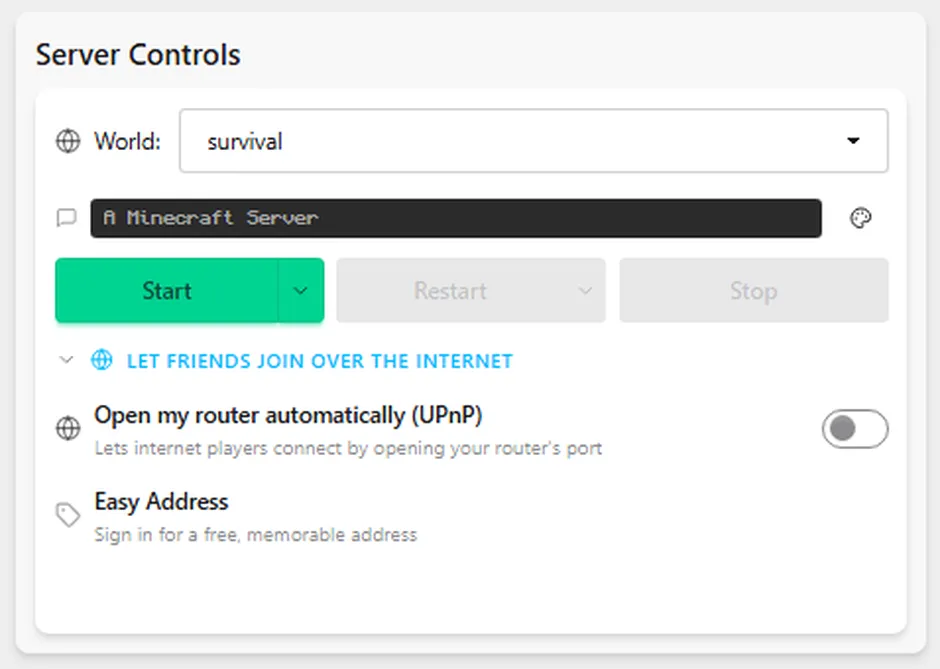
When you turn on Internet Access in SpawnBox, it asks your router to open the right door automatically, using a technology called UPnP. No router login, no typing in numbers, no guessing which screen. It usually takes under a minute.
If your router will not do it automatically (some have UPnP switched off), SpawnBox does not leave you stranded: it shows you the exact single port to forward and where to do it, so even the manual path is a short, guided step instead of a research project.
The address you actually share
Once internet access is on, SpawnBox gives your server a friendly Easy Address, something
like your-server.mc.spawnbox.app, and it is free. That is what your friends type into
Minecraft’s Multiplayer screen (Add Server, paste it in, Done). It beats sharing a string
of numbers, and it does not change even if your internet provider quietly changes your public
address, so you set it once and you are finished.
The other ways people are told to do this (and why we skip them)
You will see other routes recommended online. None of them are scams; they just tend to be more steps, or more money, than most people need:
- Forward the port by hand. It works, but it means logging into your router and forwarding a port yourself. That is exactly the part SpawnBox automates for you, and if your router cannot, SpawnBox walks you through the manual version anyway.
- A VPN-style tool like Hamachi. It works, but every single friend has to install it and join your private network first. Fine for one or two people; a real hassle to coordinate for a whole group of kids.
- Paying for hosting. This is legitimately easy, and a fair choice for some people. You are just paying every month for something your own PC can already do for free.
If the easy way still does not work: shared internet (CGNAT)
There is one case where even opening the port cannot help. Some internet providers put your whole home behind a single address shared with many other customers. The industry name is CGNAT, and it is common on home internet that runs over a cellphone network (4G/5G), some rural, fiber, and satellite providers like Starlink, and networks run by an IT department. When you are behind it, there is no private door to open, because the door is not yours to open.
It is not your fault, it is not a SpawnBox problem, and there is a free way around it. We walk the whole fix, step by step, in friends still can’t connect.
”Isn’t opening a port dangerous?”
It is a fair thing to ask. What SpawnBox opens is just the one door your game needs, a single port pointed at your PC, not your whole home network. That one port is the same thing every way of hosting a server uses; it is simply how friends reach your game, and nothing else. Your world and all its files stay right on your computer the entire time.
Want only the friends you choose to get in? Watch: Minecraft server whitelist: keep strangers off your server
The short version
You usually do not need to port forward at all. Turn on Internet Access, let SpawnBox open the one port for you (or show you how if your router will not), share the friendly Easy Address, and your friends are in. If it turns out your internet is the shared (CGNAT) kind, the friends still can’t connect guide has the free fix.
New to all of this? Our step-by-step Windows setup guide gets a server running first, and the rest of this falls into place from there.