Friends still can't connect? A free fix for tricky internet
Friends can't join your Minecraft server even after SpawnBox set it up? Your internet may be blocking them (CGNAT). A free fix with playit.gg.
Your server is running, SpawnBox says everything looks good, and yet your friends still see “connection timed out.” If that’s you, take a breath: your server is fine, and this is one of the most common walls people hit. Better still, there’s a free way over it.
This guide is for the specific case where the normal way to let friends in just will not work, no matter what you try. We’ll explain why in plain English, then walk you through a free tool called playit.gg that gets your friends connected anyway.
First, let SpawnBox try the easy way
Before reaching for anything extra, let SpawnBox do what it’s built to do. On your
server, open Getting Players Connected and turn on Internet Access. SpawnBox
asks your home router to open the right door automatically (using a technology called
UPnP), then walks you through picking a memorable address to share, like
your-server.mc.spawnbox.app. Follow that panel all the way through: picking an
address, or completing the step, is what actually turns internet access on, so try not
to hit Cancel on this one.
When it works, you’re done: share the address and your friends walk right in. Most people never need the rest of this guide.

Prefer to watch? How to invite friends to your Minecraft server (and what to do when they can't connect)
When even that can’t work: a shared internet address (CGNAT)
If SpawnBox can’t open your router automatically, it tells you so and suggests the next step: open your router yourself and forward your server’s port by hand. For most people, that manual step fixes it.
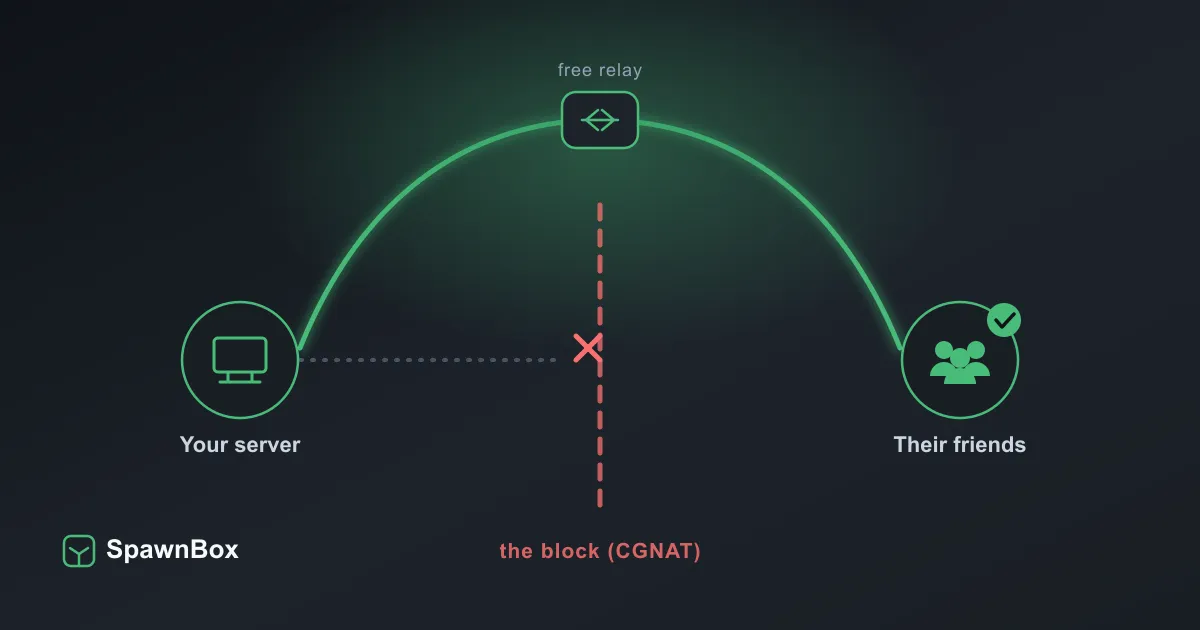
But some internet setups make even that impossible. Your provider may put your whole home behind a single address shared with many other customers. The industry name for this is CGNAT (carrier-grade NAT). When you’re behind it, there is no private door to open, because the door isn’t yours to open. You can forward ports in your router all day and nothing changes, because the block is one level up, at your provider.
You’re likely behind CGNAT if:
- SpawnBox’s automatic setup failed and forwarding the port by hand didn’t help.
- You’re on home internet over a cellphone network (4G/5G home internet), some fiber or rural providers, or satellite internet such as Starlink.
- You’re on a shared network you don’t control: an apartment building, a dorm, a campus network, or a workplace, office, or other network run by an IT department.
None of this is a SpawnBox problem, and it isn’t something you did wrong. It’s just how some connections are set up. Happily, there’s a free way around it.
If the network is run by an IT department (a workplace, office, school, or campus), the block is theirs to manage, not yours, and some don’t permit servers on their network at all. The good news: the same free relay we cover below (playit.gg) is usually the way through, because it doesn’t need anything opened up on their end. If you’re not sure what’s allowed, it’s worth a quick word with whoever runs the network.
The free fix: playit.gg
 playit.gg
Quick note before we dive in: playit.gg is a free tool made by a separate team, not by SpawnBox. We just think it’s the best free way around this particular wall, so we’re happy to point you their way. The logo above opens their site in a new tab.
playit.gg is a free tool that gives your server its own public address and quietly carries your friends’ connections to it. Instead of your friends trying to reach your home directly (which CGNAT blocks), they connect to playit, and playit hands the connection to your server. It works even when nothing else will.
Two honest notes so you know what you’re signing up for:
- Because connections take a small detour through playit, there can be a little extra delay. For most survival and building servers you won’t notice; for hardcore PvP, every millisecond matters, so it’s worth knowing.
- As a nice side effect, your friends connect to playit’s address, not your home address, so your home stays out of the picture. (Good to know: the regular Easy Address does not hide your home address, so this is a real bonus of the playit route.)
Set it up
1. Find your server’s port in SpawnBox
playit needs to know which “channel” your server is listening on. That’s your game
port, and SpawnBox shows it for you. Look at your server’s addresses: the
For Local Players line ends in a number after a colon, like
192.168.1.20:25565. That number after the colon (here, 25565) is your port.

2. Install and run playit.gg
Head to playit.gg, make a free account, and install their small program on the same PC that runs your server. Follow playit.gg’s own official setup guide for this part, then come back here.
3. Point playit at your server
In playit, create a tunnel for Minecraft (Java Edition) and aim it at your
server’s port on your own PC. When playit asks where your server is, use your PC’s
local address with the port from step 1 (for example, 127.0.0.1:25565).
4. Share the playit address, not the SpawnBox one
Once the tunnel is running, playit gives you a public address (something like
your-name.playit.gg with a port). That’s the address your friends use now. Share
the playit address, not your SpawnBox Easy Address, since the Easy Address is the
one your internet is blocking.
Test that a friend can connect
The real test is a real friend. Have someone add your new playit address to their Minecraft Multiplayer list (Add Server, paste the address, Done) and hit connect. If they get in, you’re finished. If not, playit’s site shows whether your tunnel is online, which is the first thing to check.